Examples
Here we will see an example of the work flow with PHYS Simulation API. To make
HTTP requests we will use the requests Python library.
Let’s see our API in action!
1. Request Simulation
Lets start with some imports and defining our simulation request body.
>>> import sys
>>> import os
>>> from time import sleep
>>>
>>> import requests
>>>
>>> ######################## Example: Simulation Request ##########################
>>>
>>> # Prepare the simulation request
>>> sim_system = "Chen-Lee-Attractor"
>>> sim_request = {
>>>     "system": sim_system,
>>>     "username": "PHYSSimulation",
>>>     "t_span": [0, 200],
>>>     "t_steps": 1e5,
>>>     "ini_cndtn": [10, 10, 0],
>>>     "params": {
>>>         "a": 3,
>>>         "b": -5,
>>>         "c": -1,
>>>     }
>>> }
Note that sim_request follows the pydantic model
simulation_API.controller.schemas.SimRequest. For the
ChenLeeAttractor, the initial
condition array is of length 3, and the parameters are
a,
b and
c. In your
case, the conditions may be different, so you must check what are the parameters
and what are the initial conditions for the system you want to simulate.
Now we request the simulation via post to the appropiate route and print the result
>>> # PHYS Simulatio URI
>>> url = 'http://0.0.0.0:5700'
>>>
>>> # Simulation request route
>>> sim_requrest_route = f'/api/simulate/{sim_system}'
>>>
>>> # Request simulation via HTTP using `requests` module
>>> sim_request_response = requests.post(url + sim_requrest_route, json=sim_request)
>>>
>>> # Print response
>>> print(
>>>     "",
>>>     "Simulation Request Response",
>>>     "----------------------------------------",
>>>     f"HTML status code: {sim_request_response.status_code}",
>>>     "Response:",
>>>     "    {",
>>>     sep='\n',
>>> )
>>> for key, v in sim_request_response.json().items():
>>>     print(f"        '{key}': {v}")
>>> print("    }")

Simulation Request Response
----------------------------------------
HTML status code: 200
Response:
    {
        'sim_id': e5f6d0e0719b45fea4aa9f098e12e7c3,
        'user_id': 1,
        'username': PHYSSimulation,
        'sim_sys': Chen-Lee-Attractor,
        'sim_status_path': /api/simulate/status/e5f6d0e0719b45fea4aa9f098e12e7c3,
        'sim_pickle_path': /api/results/e5f6d0e0719b45fea4aa9f098e12e7c3/pickle,
        'message': (When –and if– available) request via GET your simulation'sstatus in route 'sim_status_path' or download your results(pickle fomat) via GET in route 'sim_pickle_path',
    }
We have just finished the first step in the workflow. We now know our sim_id
how to request the simulation results.
2. Request Simulation Status
We proceed now to request the simulation results via GET in route
/api/simulate/status/{sim_id}.
>>> ######################### Example: Simulation Status ##########################
>>>
>>> # Wait until the simulation is done
>>> sleep(5)
>>>
>>> # Get simulation ID
>>> sim_id = sim_request_response.json()["sim_id"]
>>>
>>> # Simulation status route
>>> sim_status_route = f"/api/simulate/status/{sim_id}"
>>>
>>> # Request simulation status via HTTP using `requests` module
>>> sim_status_response = requests.get(url + sim_status_route)
>>>
>>> # Print response
>>> sim_status_response_json = sim_status_response.json()
>>> print(
>>>     "",
>>>     "Simulation status Response",
>>>     "----------------------------------------",
>>>     f"HTML status code: {sim_status_response.status_code}",
>>>     "Response:",
>>>     "    {",
>>>     sep='\n',
>>> )
>>> for key, v in sim_status_response_json.items():
>>>     print(f"        '{key}': {v},")
>>> print("    }\n")

Simulation status Response
----------------------------------------
HTML status code: 200
Response:
    {
        'sim_id': e5f6d0e0719b45fea4aa9f098e12e7c3,
        'user_id': 1,
        'date': 2020-10-05T23:31:24.977484,
        'system': Chen-Lee-Attractor,
        'ini_cndtn': [10.0, 10.0, 0.0],
        'params': {'a': 3.0, 'b': -5.0, 'c': -1.0},
        'method': RK45,
        'route_pickle': /api/results/e5f6d0e0719b45fea4aa9f098e12e7c3/pickle,
        'route_results': /api/simulate/status/e5f6d0e0719b45fea4aa9f098e12e7c3,
        'route_plots': /api/results/e5f6d0e0719b45fea4aa9f098e12e7c3/plot,
        'plot_query_values': ['threeD', 'project'],
        'plot_query_receipe': 'route_plots' + '?value=' + 'plot_query_value',
        'success': True,
        'message': Finished. You can request via GET: download simulation results (pickle) in route given in 'route_pickle', or; download plots of simulation in route 'route_plots' using query params the ones given in 'plot_query_values', or; see results online in route 'route_results'.,
    }
Note the sleep(5) call at the beginning of this code block. We did this in
order to be sure that the simulation was completed. If we request the simulation
status too soon, it may not be available and an appropiate message will be
returned in the response as well as "success": False.
Also note that in the "message" it is clearly stated how to access the
results.
3. Request Simulation Results
Now we proceed to download the pickle and the plots, as stated in the
simulation status "message".
Lets start with the pickle
>>> ############################ Example: GET Results #############################
>>>
>>> if not sim_status_response_json["success"]:
>>>     print("Warning: pickle and plot files not available.\n")
>>>     sys.exit(1)
>>>
>>> # Pickle download route
>>> pickle_route = sim_status_response.json()["route_pickle"]
>>>
>>> # Request simulation status via HTTP using `requests` module
>>> pickle_response = requests.get(url + pickle_route, stream=True)
>>>
>>> # Get our directory absolute path
>>> this_directory = os.path.dirname(__file__)
>>>
>>> # Save Pickle
>>> with open(this_directory + '/simulation.pickle', 'wb') as file:
>>>     file.write(pickle_response.content)
The generated file is named simulation.pickle and contains all the
information of the simulation results.
Finally, lets download the plots
>>> # Plots download route
>>> plots_route = sim_status_response.json()["route_plots"]
>>>
>>> # Plot query values
>>> plot_query_values = sim_status_response.json()["plot_query_values"]
>>>
>>> for qv in plot_query_values:
>>>     # Construct the URI query for each plot
>>>     plot_query_url = url + plots_route + "?value=" + qv
>>>
>>>     # Request the plot
>>>     plot_response = requests.get(plot_query_url, stream=True)
>>>
>>>     # Save the plot in a file
>>>     plot_file_name = this_directory + "/plot_" + qv + ".png"
>>>     with open(plot_file_name, 'wb') as file:
>>>         file.write(plot_response.content)
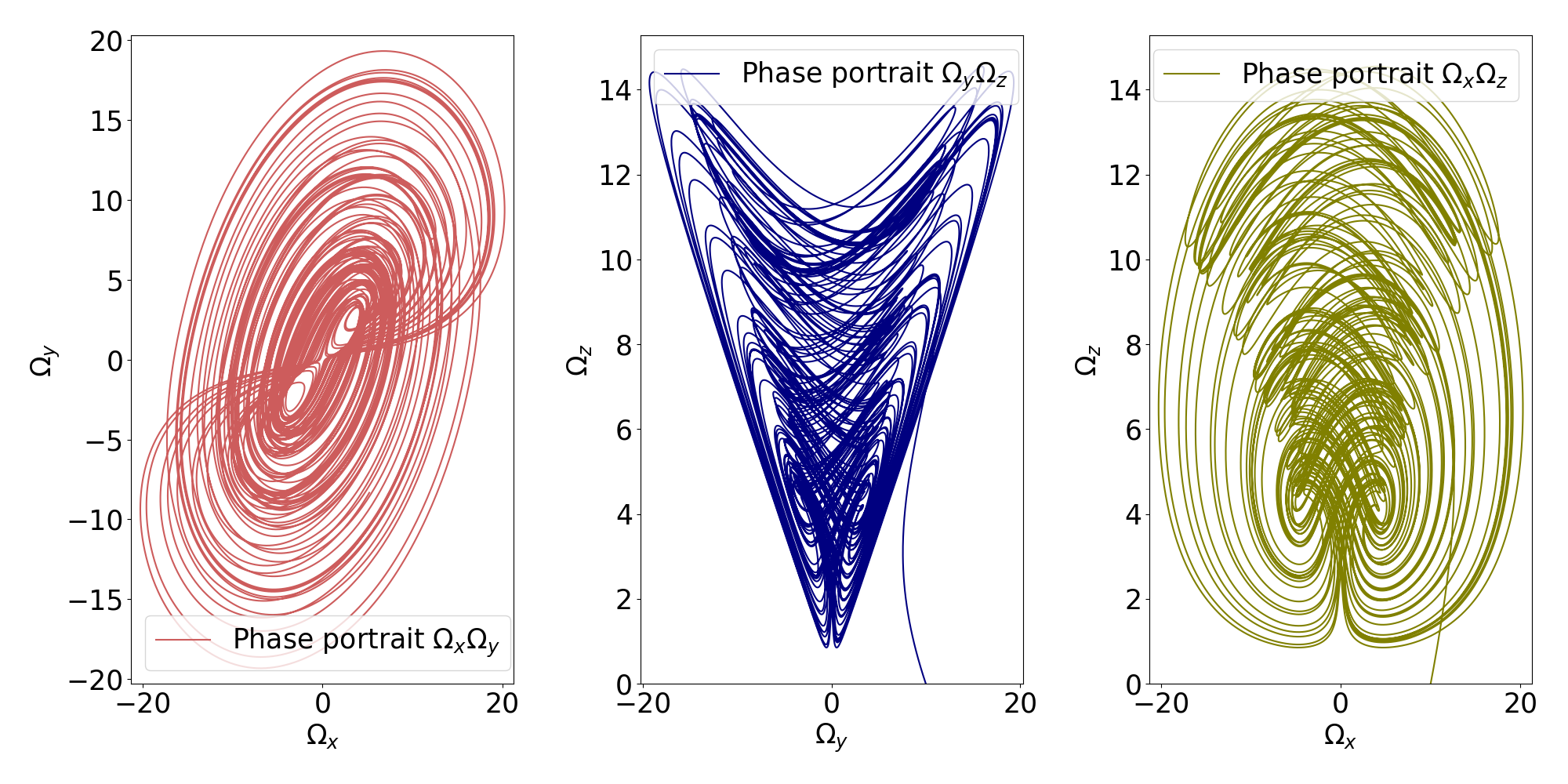
The two generated plots are named plot_threeD.png and plot_project.png
and are respectively displayed below.